28JoursBox in 2 minutes
28JoursBox connects three kinds of devices around one shared band folder:
- The server PC: a Windows PC belonging to the band that keeps all the files, runs the music analyses (at night) and stays on. Only one person installs it, and that person becomes the administrator.
- The members' PCs: everyone gets a 28JoursBox folder on their Desktop that syncs with the server all by itself.
- Phones (and any browser): nothing to install. Open the invitation link and you'll find all the files, the advanced player, the recorder…
Everything stays at home. Files, versions, takes, analyses and separated tracks are stored on the server PC's drive, not in a data center; the AI processing runs on that PC, at night. The flip side: backups are the band's job (see Back up). Why this choice?
Nickname and group password
There are no personal accounts with passwords. Each member picks a nickname, and a single password covers the whole band. It's already built into the invitation link, so in practice you never have to type it.
Always use the same nickname on all your devices, and never use another member's: a nickname that already exists opens that member's session (capitals don't matter, "Marc" = "marc"). A new nickname creates a new member.
How to read this guide
- Button and menu names are written as they appear in the app: Advanced player.
- admin marks what only the band's administrator can do. On any device other than the server PC, you first need to unlock administration with the administrator password.
- "Tap" is for the phone; on a PC, it's a click. "Long press": keep your finger down for about half a second.
- A file's ⋯ menu opens with the ⋯ button on its row, or with a right-click on a PC. It shows 8 items at most: the others are under More… (details). A long press on the row starts selecting several files.
- The bottom bar (the left-hand menu on a PC) has six tabs: Files, Search, Recent, Calendar, Messages and Me. The Trash, Shared links and Settings are in Me: "Me › Settings › …" means "the Me tab, then Settings…".
Installing
The server PC (just once)
This is for the person who manages the band, on the PC that will keep the files. First check the system requirements.
- Download and run 28JoursBox-Serveur-Setup.msi (Download page) and accept the Windows administrator prompt. The MSI installs the "28JoursBox Server" Windows service, which starts with the PC, even when nobody is signed in.
- When the installation finishes, the Serveur 28JoursBox installé (28JoursBox server installed) notification appears and the 28JoursBox icon shows up next to the clock. Click the notification or the icon, then Tableau de bord (Dashboard) (or right-click the icon › Ouvrir le tableau de bord (Open the dashboard)).
- The Setup page (First setup) asks for the Group name and Your nickname: you become the band's administrator. Click Create the group.
- The The group is ready page shows the group password and the invitation link: send the link to the members, then click Continue to the files. You can find the link anytime in Invite someone.
The server PC's icon (next to the clock): a click opens its panel (Tableau de bord (Dashboard), État du serveur… (Server status…)); right-click offers Ouvrir 28JoursBox (Open 28JoursBox), Ouvrir le tableau de bord (Open the dashboard), Synchroniser aussi des fichiers sur ce PC… (Also sync files on this PC…) and Quitter (le serveur continue de tourner) (Quit (the server keeps running)). By default, the server PC has no synced 28JoursBox folder: choose Synchroniser aussi des fichiers sur ce PC… if you also want to work on this PC (the members' setup wizard opens, and the full PC app with its Préférences (Preferences) becomes available).
What gets set up: the Windows service, a firewall rule (Private network only), and the data in C:\ProgramData\28JoursBox.
To keep the server reachable: turn off sleep when plugged in (Windows Settings › System › Power), use a network cable, and make sure the Windows network is set to the Private profile.
Access from outside (4G): Tailscale
Out of the box, the server can only be reached from the home Wi-Fi. There are two solutions, which you can combine: Tailscale, the simplest (nothing to set up on the router), and direct access, which is faster. Members' PCs automatically pick the fastest route that responds: local network, direct access, then Tailscale. With Tailscale, only the server PC installs anything; phones and other PCs install nothing. The diagram of how it works and the detailed step-by-step (including router by router) are on the Access from outside page.
- On the server PC, click the icon next to the clock › État du serveur… (Server status…) (on a PC that also syncs files: the panel's ⚙ gear › État du serveur…), Accès extérieur (Outside access) row › Régler… (Set up…). The Accès depuis l'extérieur (4G) (Access from outside (4G)) window opens. Click Installer Tailscale (Install Tailscale): the Tailscale download page opens; install it and sign in to Tailscale.
- Come back and click J'ai installé Tailscale, vérifier (I installed Tailscale, check) (or Vérifier à nouveau (Check again) if Tailscale wasn't connected yet).
- Click Activer l'accès extérieur (Turn on outside access). The first time, a Tailscale page opens: allow Funnel, then come back. Accept the administrator prompt.
- Result: "Accès extérieur activé : https://<pc>.<nom>.ts.net" (Outside access turned on). The invitation link now uses this address. At home, PCs keep going through the local network (faster for big WAV files).
The server PC checks the publication every 5 minutes and restores it if needed; if it stays down, the icon turns orange and the Accès extérieur interrompu (Outside access interrupted) notification appears. If you rename the machine in Tailscale, a Nouvelle adresse du serveur (New server address) notification appears: click it to apply it. Alternatives for advanced users: Cloudflare Tunnel, or port forwarding on the router with a proxy (Caddy), by setting PublicUrl in server.json.
Direct access (faster, without Tailscale) admin
Tailscale's relays are often limited to a few MB/s. With direct access, members connect straight to the server PC's router: much faster for big syncs and for playing a WAV on your phone. Tailscale stays as a backup, and direct access can be turned on or off at any time.
Detailed step-by-step, with the exact menus of the Orange, SFR, Bouygues and Free routers, how to give the server PC a fixed address and what to do if it doesn't work: Direct access step by step and Router by router.
- On duckdns.org (free): sign in (with a Google account, for example), reserve a name (e.g. "myband") and copy the token shown at the top of the page.
- On the router (Livebox:
http://192.168.1.1, Network menu): under Baux DHCP statiques (static DHCP leases), always give the server PC the same address. - Still on the router, NAT/PAT: forward port 8443 (TCP) to the server PC's address, port 8443. (Use 443 only if the router allows it: the address then shows no port.)
- In 28JoursBox: Me › Settings › Server › Fast access through your router, fill in Name chosen on duckdns.org, duckdns.org account code and Port open on the router, check Turn on direct access, then Save. The HTTPS certificate (Let's Encrypt, free) is obtained in one to two minutes, then renews itself.
- Test it on a phone on 4G (Wi-Fi off) by opening the fast address shown, or tap Check now.
The card shows the status ("On: members' PCs use direct access"), the router address that was checked and the certificate's expiry date. Members' PCs follow along by themselves, with nothing to do. Phones keep the address of the installed app; listening and downloads go through direct access when it responds, falling back to Tailscale automatically.
A VPN running on the server PC can block direct access. Opening a port on the router exposes the server to the Internet: it's protected by HTTPS and by the group password; keep Windows up to date. By turning it on, you accept the Let's Encrypt terms of use.
Members' PCs
- The easiest way: open the invitation link in the PC's browser and click Install 28JoursBox on this PC. The link is copied to the clipboard automatically. Otherwise, download 28JoursBox-Client-Setup.msi.
- Run the downloaded file. The wizard opens and finds the band by itself thanks to the copied link ("✓ Groupe …" box). Otherwise, paste the link into Lien d'invitation (Invitation link). No link? Pas de lien ? Saisir l'adresse et le mot de passe (No link? Enter the address and password).
- Choose Votre pseudo (Your nickname), then C'est parti (Let's go).
- A single page then brings together the folder location, the space gauge (at the very top, as soon as the space needed is known) and the choice of folders to keep on this PC (only the first folder is ticked at first; the Tout sélectionner (Select all) box ticks everything). The gauge compares your selection with the disk space (keeping 10% free): green, orange, or red if it doesn't fit; another drive is suggested if the one you picked doesn't have room. The ‹ Retour (‹ Back) button goes back to the link and nickname page. Confirm with Synchroniser ces dossiers (Sync these folders).
- C'est prêt ! (All set!): the 28JoursBox folder is on the Desktop, with a 28JoursBox (web) shortcut to the web interface, and the app starts with Windows. This shortcut (like the Ouvrir le site web (Open the website) button in the panel) opens the interface already signed in, through direct access when it responds, otherwise through Tailscale, in a maximized app window with no tabs (with Edge, Chrome, Brave or Vivaldi). It's also in the Start menu, where you can pin it to the taskbar.
Locations not allowed for the folder: a network folder, the root of a drive, a drive that isn't NTFS, a OneDrive folder or a folder already synced by another program. If your Desktop is in OneDrive, the folder goes into your personal folder with a shortcut on the Desktop.
Messages you might see: "Ce lien n'est plus valable : le mot de passe du groupe a changé. Demandez le nouveau lien." (This link is no longer valid: the group password has changed. Ask for the new link.), "Ce pseudo a été désactivé par l'administrateur du groupe." (This nickname has been disabled by the group administrator.), "Trop de tentatives : patientez une minute avant de réessayer." (Too many attempts: wait a minute before trying again.). With a self-signed HTTPS certificate, check Faire confiance à ce serveur (Trust this server).
Phones
- Open the invitation link (received by message, or by pointing the camera at the QR code shown by the PC: the panel's Téléphone (Phone) button).
- Welcome! screen: type Your nickname, then Join.
- Add the app to your home screen to get it full screen and keep the microphone permission:
- iPhone (Safari): Share button (square with an arrow) › Add to Home Screen › Add.
- Android (Chrome): ⋮ menu › Add to Home screen or Install app. A tip card also suggests it at the top of the file list, and so does Me › Settings › Install the app.
Another way: the Sign in screen with Pseudo (Nickname) and Group password (capitals, spaces and hyphens are ignored). The session lasts 30 days and is extended every time you use it. The app is used in portrait mode (except for photos and videos).
On Android, the installed app offers shortcuts when you long-press its icon: Record audio, Téléverser des fichiers (Upload files), Recent. It also shows up in the Share menu of other apps (photos, audio, PDFs, YouTube links).
LibreOffice (previewing Office documents)
To view Word, Excel and PowerPoint files (and OpenDocument) on phones and in the browser, install LibreOffice (free) on the server PC only, in the default folder it suggests (C:\Program Files\LibreOffice). It's detected automatically, with no restart. Members' PCs and phones don't need it.
- The first time a document is opened, the server converts it to PDF ("Preparing the preview…", 3 minutes at most), then keeps it: later openings are instant. New documents are also prepared at night.
- Without LibreOffice, the app shows "Preview unavailable: LibreOffice is not installed on the server." with a Download button. Everything else works.
- Installed somewhere else? Enter the path to
soffice.exeinLibreOfficePath(server.json). - To check that it's detected: Me › Settings › Server › Server status › Tools, Document preview (LibreOffice) row (administrator).
Updates and uninstalling
- Members' PCs: the app checks with the server 1 minute after startup, then every 30 minutes and as soon as the server is reachable again (after its own update). When a new version is ready, a blue dot appears on the icon, the tooltip says so ("Version … · mise à jour X disponible", update X available) and a Mise à jour disponible (Update available) notification appears. Install it with Mettre à jour (Update), in the panel's banner or in Préférences (Preferences) › Général (General). Rechercher une mise à jour (Check for an update), in the panel's ⚙ gear or in Preferences, checks right away. Syncing stops for a minute during the installation, then 28JoursBox restarts by itself. A failed update is reported in the server log, with the PC's name. Updates are signed: a PC refuses any update that doesn't come from 28JoursBox, and never goes back to an older version.
- Server PC admin: the server checks once a day whether a new public version exists. The server PC then shows the Mise à jour du serveur (Server update) notification (a click opens the window) and, in its panel, the banner "Nouvelle version X disponible (vous avez Y)" (New version X available (you have Y)) with Voir la mise à jour… (See the update…). The Mise à jour du serveur window offers Télécharger et installer (Download and install), Rechercher de nouveau (Check again) and Page de la version (Release page). The installer is signed and checked before installation; expect about a minute without access for the members. Another way: État du serveur… (Server status…), Version row › Mettre à jour… (Update…) or Rechercher (Check). The new version is then offered automatically to the members' PCs.
- Seen from the website: Me › Settings, Disk space card (Name, logo and disk space, in the Server section, for an administrator) shows the server's name and version followed by "up to date", or, for administrators, "Server update: version X available", with a reminder that it is installed from the server PC (click the icon next to the clock › Voir la mise à jour…).
- Phones: nothing to do. The new version applies itself in the background, or a banner offers Refresh. The app never reloads while the recorder is open.
- Uninstalling (Windows Settings › Apps) removes the program, the service, the automatic startup and the settings, but keeps your files in the 28JoursBox folder and all the server's data: reinstalling finds everything again. Note: the PC's hidden local trash (
.sync) is deleted.
The app on the PC
It lives in the notification area, next to the clock. If you quit it, start it again from the Start menu ("28JoursBox"). The PC app is in French only: labels are quoted in French, with their meaning in brackets.
On a PC that is only a server, the icon follows the server's health. Its right-click menu offers Ouvrir 28JoursBox (Open 28JoursBox), Ouvrir le tableau de bord (Open the dashboard), Synchroniser aussi des fichiers sur ce PC… (Also sync files on this PC…) and Quitter (le serveur continue de tourner) (Quit (the server keeps running)); its panel, Tableau de bord (Dashboard) and État du serveur… (Server status…) (see the Server status window). This chapter describes the full app on PCs that sync a folder.
The icon and its colors
The 28JoursBox icon carries a colored badge. Hover over it: the tooltip gives the status and always the version ("Version 1.8.7216 · à jour" (up to date), "… · mise à jour X disponible" (update X available) or "… (vérification impossible)" (couldn't check)). A blue dot at the top of the icon means a new version is ready (see Updates).
| Badge | Status |
|---|---|
| Green, check mark | "À jour" (Up to date) |
| Blue, arrows | "Synchronisation en cours" (Syncing) or "Démarrage…" (Starting…) |
| Gray, two bars | "En pause" (Paused), or "En pause (enregistrement)" (Paused (recording)) while a music program is open |
| Dark gray, cross | "Hors ligne" (Offline): the server isn't responding (automatic retry) |
| Orange, "!" | Something needs your attention (signing in, confirming a mass deletion, a new group password) or, on the server PC, something to keep an eye on |
| Red, "!" | "Erreur" (Error): see the recent activity in the panel; on the server PC, a serious server problem |
On the server PC, the color also follows the server's real health: server stopped or not answering, outside access interrupted, backup older than 48 hours, disk almost full. The tooltip says "Serveur : tout va bien" (Server: all is well) or "Serveur : attention (N)" (Server: attention (N)), and a notification only appears when the status changes, for example Accès extérieur interrompu (Outside access interrupted) or Sauvegarde en retard (Backup overdue).
Left-click: opens the panel (a double click doesn't close it). Right-click: the menu.
The menu (right-click)
A short menu, with four items:
- Ouvrir 28JoursBox (Open 28JoursBox): the panel.
- Ouvrir le dossier 28JoursBox (Open the 28JoursBox folder) in File Explorer.
- Mettre en pause (Pause), which becomes Reprendre la synchronisation (Resume syncing).
- Quitter 28JoursBox (Quit 28JoursBox): you're asked to confirm ("Quitter 28JoursBox ?", Quit 28JoursBox?), then syncing stops and the locks are released cleanly.
Everything else (Preferences, importing a link, updates, inviting, QR code) is in the panel.
The panel
A single screen, with no tabs:
- At the top: the status, "Dernière synchro : il y a N min" (Last sync: N min ago), the server, and the ⚙ gear (Préférences et autres actions, Preferences and other actions): Préférences… (Preferences…), État du serveur… (Server status…, server PC only), Importer l'audio d'un lien… (Import the audio from a link…), Rechercher une mise à jour (Check for an update) and Quitter 28JoursBox (Quit 28JoursBox, with confirmation).
- Banners, only when you need to act: update available (Mettre à jour, Update), server update (Voir la mise à jour…, See the update…, server PC), group password changed (Entrer le nouveau mot de passe, Enter the new password), Suppression massive détectée (Mass deletion detected, details).
- Clickable rows, only when there's something to show: the server status (server PC), the Copies en double (Duplicate copies, with Ouvrir (Open), Afficher (Show), Ignorer (Ignore); see conflicted copies) and the open projects.
- Activité récente (Recent activity): the latest files sent, received, deleted or moved; a click shows the file in File Explorer. The Projets › (Projects) link lists the music projects, with Prendre la main (Take over) / Libérer (Release) (see locks).
- At the bottom, buttons with their text: Ouvrir le dossier (Open the folder), Ouvrir le site web (Open the website), Pause / Reprendre (Resume), Téléphone (Phone: a QR code to scan with the phone; it tells you whether it works everywhere, on Wi-Fi and 4G, or only on the same Wi-Fi) and Inviter (Invite: the link, Copier le lien (Copy the link), Copier le message (Copy the message), a QR code and emailing the PC app). Then the version line and the result of "Rechercher une mise à jour".
Notifications (bottom right) open the panel with a click. At home, changes made by the other members show up within a few seconds.
Preferences
The panel's ⚙ gear › Préférences… (Preferences…): the Préférences 28JoursBox window has three tabs.
| Tab | What you set there |
|---|---|
| Général (General) | The version, with Mettre à jour (Update) and Rechercher une mise à jour (Check for an update) (plus État du serveur… (Server status…) on the server PC). The Lancer 28JoursBox au démarrage de Windows (Start 28JoursBox when Windows starts) switch. Compte (Account): nickname, server, Inviter quelqu'un… (Invite someone…) and Se déconnecter (Sign out) (syncing stops, your files stay on the PC, the wizard opens; to switch to another server or band, run the wizard again with the new link). The collapsible Dépannage (Troubleshooting) part: Réparer les coches de l'Explorateur (Repair the File Explorer check marks), Ouvrir les journaux (Open the logs), Recréer l'icône du site sur le Bureau (Recreate the website icon on the Desktop) (the 28JoursBox (web) icon, also added to the Start menu). |
| Dossiers (Folders) | Emplacement du dossier (Folder location): Ouvrir (Open) and Déplacer… (Move…) (see moving the folder). Dossiers à garder sur ce PC (Folders to keep on this PC): check them in the tree, then Appliquer (Apply) (Actualiser (Refresh) reloads the list). An unchecked folder is removed from this PC but stays on the server and on the website. Checkbox Garder aussi sur ce PC les nouveaux dossiers (Also keep new folders on this PC). |
| Vitesse (Speed) | Pendant l'enregistrement (logiciel de musique ouvert) (While recording (music program open)), that is with Cubase, Nuendo or Studio One open: Mettre la synchronisation en pause (Pause syncing), Ralentir la synchronisation (conseillé) (Slow down syncing (recommended)) with the Vitesse pendant l'enregistrement (Speed while recording) ("Modérée (2 Mo par seconde)", moderate, 2 MB per second, at first), or Synchroniser normalement (Sync normally). And the Vitesse maximale (Maximum speed): "Aucune limite (conseillé)" (No limit (recommended)), to lower only if syncing slows down the Internet at home. |
The server name and sending mail are set in the web interface (Me › Settings), by the administrator; the rest of the server, in the server PC's Server status window.
The synced folder
Work in the 28JoursBox folder like in any other folder: whatever you put in it reaches the other members, and vice versa. All the files really are on your drive, so they're available offline.
In Windows File Explorer
- Status column with the usual Windows icons: green check mark = synced, blue arrows = in progress.
- Verrou 28JoursBox (28JoursBox lock) column: "Verrouillé par X" (Locked by X) or "Erreur : …" (Error: …).
- The working folders of music programs (see below) are marked "Exclu (non synchronisé)" (Excluded (not synced)).
- The first time you open a folder, the view is set to a list showing the date created, newest at the top. The original creation date is kept from one PC to the next, so you can see when a take was really recorded.
What isn't synced
- Technical files:
Thumbs.db,desktop.ini,.DS_Store,~$*,*.tmp,*.peak… - Music program caches: next to a Cubase project (.cpr):
Images/,Auto Saves/,*.bak,*.csh; next to a Studio One project (.song):Cache/,History/,*.autosave,*.song.bak. - Your own exclusions: create a
.syncignorefile at the root of the 28JoursBox folder, one pattern per line (*and?; a trailing/for a folder;#for a comment). It takes effect as soon as it changes. - Names Windows doesn't allow (
: * ? " < > |, a trailing period or space, CON, NUL…) are refused.
Conflicted copies: nothing is ever overwritten
If two people change the same file at the same time, the server's version keeps the name and yours becomes nom (copie en conflit de NOM-DU-PC 2026-10-09).ext, which is sent to the band. Same thing if you change a file locked by another member. A change always wins over a deletion. You'll find them in the panel's Copies en double (Duplicate copies) row.
Trash, versions and mass deletions
- A deleted file goes to the server trash for 30 days, and every file has a 30-day version history: see Trash and versions.
- Anything the sync removes or replaces on your PC is also kept for 30 days in the hidden folder
28JoursBox\.sync\trash. - Safety pause: if more than 500 files, or more than 20% of the folder, are deleted within 10 minutes, the deletions are put on hold (orange icon, Suppression massive détectée (Mass deletion detected) banner in the panel). Choose Supprimer aussi sur le serveur (Also delete on the server) (recoverable for 30 days from the trash) or Restaurer les fichiers (Restore the files).
- Transfers can resume: a dropout in the middle of uploading a session of several GB loses nothing. A file that's still being written is only sent once it's stable.
Cubase and Studio One projects: locks
When you open a .cpr (Cubase, Nuendo) or .song (Studio One) project from the 28JoursBox folder, the app recognizes it from the window title and puts a lock in your name on it. The other members see the file as read-only, "Verrouillé par …" (Locked by …) in File Explorer and the panel, and get a Projet verrouillé (Project locked) notification if they try to open it (their changes would become a conflicted copy).
- The lock is renewed every 2 minutes and expires by itself after 10 minutes if your PC drops off. When you close the project, the final upload happens, then the lock is released.
- Media (WAV) goes before the project file: when the others open it, nothing is missing.
- Manual lock: panel › Projets › (Projects) › Prendre la main (Take over) / Libérer (Release), or the project's ⋯ menu in the web interface. A lock taken by hand isn't released automatically.
- While a music program is open, syncing is throttled so it doesn't get in the way of recording (adjustable in Préférences (Preferences) › Vitesse (Speed)).
Moving the 28JoursBox folder
- Close your open projects and audio files.
- Préférences (Preferences) › Dossiers (Folders) › Déplacer… (Move…), choose the new location (empty, on an NTFS drive, with enough space), then confirm.
- On the same drive, it's instant; on another drive, everything is copied and checked before the old folder is deleted (progress bar, Annuler (Cancel) button). Nothing is sent back to the server.
On the phone: files
Getting around
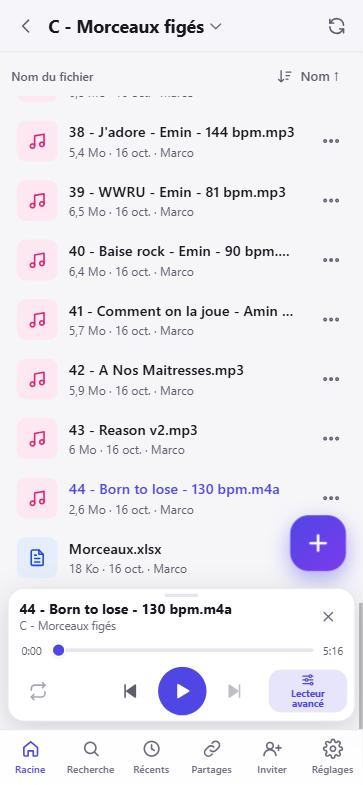
- Bottom bar, six tabs: Files (main folder), Search, Recent (the last 100 files changed by the band), Calendar (rehearsals, gigs and absences, details), Messages (the band's chat, with a red badge for unread messages, details) and Me (your account, the Trash, Shared links and Settings, details). The family space has no Calendar, so it has five tabs. On PC, the same items make up the left-hand menu, plus the Add button. With a mouse: one click selects, a double click opens (a song opens in the advanced player), Shift+click selects a range, Ctrl+click adds or removes a file.
- Open a folder: tap it. Go back up: the ‹ arrow at the top, the phone's back button, or swipe right from the left edge of the screen: you go up to the parent folder, one level at a time, all the way to the top folder.
- Tapping the folder name at the top opens Go to: all the folders above, to jump up in one go.
- Refresh: the button at the top right, next to the sort button, or pull the list down. The list also updates by itself.
- The app reopens the last folder you viewed, at the same spot (a folder that has disappeared opens the top folder instead). Big folders are shown in batches.
Everywhere (list, advanced player, recorder), the same purple, red and gray palette, a single Play button, round and purple, and solid purple main buttons (Save). Messages at the bottom of the screen all have the same width, and a loading badge appears under the top bar while something loads.
Sorting
The sort button at the top right (e.g. Name ↑) opens Sort by: Name, Date, Type, Size; tapping the active choice again reverses the order. Folders stay on top. Each folder keeps its own sort order: the administrator's applies to the whole band, a member's applies only to them (on all their devices).
Gestures on a row
- Tap a song: it loads in the mini player, paused. The other songs in the folder make up the play queue.
- Tap any other file: full-screen viewer (photos, videos, PDF, Office, text).
- Swipe the row to the left: quick buttons. For an audio file: Edit, Player, WAV, Rename, Delete (trash).
- Long press: a short vibration. Let go without moving to start selecting several files (see below); drag to move the item by dropping it on a folder, on the ‹ arrow (parent folder) or on the Files tab (the top folder). The message offers Cancel.
- Long press on an empty area of the list (right-click on PC): Paste text (details) and New folder.
A file's ⋯ menu
The menu first shows the most used items, 8 at most; everything else is under More… ("N more actions"), one tap away. When there are only a few actions (a folder, for example), everything fits on a single sheet. On a PC, the menu opens right next to the ⋯ button; on a phone, close the sheet with its cross, by swiping it down or by tapping outside it.
| Item | What it does |
|---|---|
| Show in folder | From Recent or Search: opens the file's folder. |
| Play | Songs: plays in the mini player at the bottom of the screen (details). |
| Advanced player | Sections, loops, tempo, separated tracks, chords (details). |
| Edit in Word (PowerPoint, Excel) | On PC only (mouse, screen of 900 px or more): opens the document in the Office installed on the PC. Ctrl+S saves a new version in 28JoursBox; the old one stays in the history. A second PC that opens it at the same time gets it read-only. |
| Share a link | Public read-only link (details). |
| Download | Downloads the original to the device. For a folder: Download (zip), the whole folder up to 500 MB; the server prepares the zip and an interrupted download picks up where it left off. On iPhone, Download opens the share sheet: Save to Files, WhatsApp, Signal, Mail, Copy… |
| Rename, Move | With Cancel in the message that follows. |
| Move to trash | Recoverable for 30 days. For a folder, a confirmation tells you what's in it. |
| More… | Opens a second sheet with the items below (only those that fit the file). |
| Edit the audio | Trim, fades, normalize; creates a new version (details). |
| Transcribe to text | Audio and video files: meeting, voice memo… A .txt file with the same name is created in the folder (details). |
| Copy the text | Text files (a transcript, for example): the whole content to the clipboard (files up to 5 MB). Also from the button in the preview. |
| Send (WhatsApp, Signal…) | Any file (song as m4a, PDF, photo, text…) through the app of your choice; for a song, the item is called Send (WhatsApp…) (details). |
| Send by mail… | The server sends the song as an attachment (details). |
| Convert to WAV… | New WAV file, 24-bit / 48 kHz by default (details). |
| To Studio One… | .song project ready to open (details). |
| To Cubase… | .cpr project ready to open in Cubase 14 or later (details). |
| Split into music pieces | A rehearsal or gig recorded in one go: one file per song, in a subfolder or next to it (details). |
| Take over / Release | .cpr and .song projects: locks or releases the project for the others. |
| Select | Selection mode, like a long press on the row (see below). |
| Duplicate | Creates "name (copie).ext" without taking up space on the server, with Cancel in the message that follows. |
| Version history | Listen to, view, download or restore an older version (details). |
| Delete for good… admin | Folders only, skipping the trash, cannot be undone (double confirmation). |
An item locked by another member can't be renamed, moved or deleted.
Several items selected (long press on a row, or ⋯ menu › Select, then tap the other rows): the bottom bar offers All, Download (a single zip), Send (a single email), Merge (at least two audio files, details), Move and Corbeille (Trash). Unchecking the last file ends the selection. On PC: Shift+click selects a range, Ctrl+click adds or removes a file.
Adding files: the + button
| Item | Use |
|---|---|
| Record audio | Opens the recorder (details). |
| Phone files | Files app (iPhone) or file manager (Android): audio, PDF, Office, sheet music, projects… several at once. |
| Import from a YouTube link | A video's soundtrack, saved as .m4a (details). |
| Take a photo or a video | Opens the camera. |
| Upload new photos | Pick photos and videos from your photo library (shows the date of the last upload). |
| Photos → text | Take photos of pages one after another (lyrics, setlist, notes) or pick Phone photos: their text lands in a single .txt file (details). |
| Photos → PDF | Photographed pages in a single PDF, searchable if you like (details). |
| Paste text | Copied text becomes a .txt file (details). |
| New folder | Creates a folder here. |
- A panel tracks the upload (3 files at a time). It resumes by itself after a network drop or if the app was closed.
- MP3 and WAV files uploaded from the phone or the browser are converted to .m4a (AAC 256 kbps, tags kept); the original goes to the trash (recoverable for 30 days). AIFF and FLAC files are not converted. Files dropped into the 28JoursBox folder on a PC are never converted.
- Same name and same content: nothing is added. Same name, different content: "name (1).ext".
- On PC, you can also drag files from the computer onto the list, or paste them with Ctrl+V (files copied in File Explorer with Ctrl+C, or a copied image): they are uploaded to the folder you're viewing.
- The + button's sheet shows all its actions, with no More….
- Upload a whole folder (browser on a PC): drag the folder into the window, or pick it in the upload window; its subfolders are recreated on the server, and each file is sent as a resumable upload.
- An uploaded file can be up to 100 GB; the quota and the server's free space are checked before the upload.
Pasting text
Text copied somewhere else (lyrics, a chord chart, an email) becomes a .txt file in the folder you're viewing.
- Copy the text in another app.
- In 28JoursBox, long-press an empty area of the list (right-click on PC) › Paste text, or the + button › Paste text. On PC, Ctrl+V in the list does the same. The phone may ask you to allow "Paste".
- The Paste text window suggests a File name taken from the first words, which you can change. Tap Send.
On a phone, only text can be pasted: phones don't pass copied images, videos or documents on to web apps. For those, use + › Phone files. On a PC (browser), Ctrl+V also uploads files copied in File Explorer or a copied image (details).
Importing the sound from a YouTube video
- Copy the video's link (or, on Android, share the video from the YouTube app to 28JoursBox).
- + › Import from a YouTube link, then Paste. File name is optional (the video's title otherwise). Tap Import.
- Watch "Downloading N %" then "Converting to m4a…". You can close the window: the import keeps going. When it's done: "Imported: name.m4a". The song is then analyzed like the others.
On PC: copy the link, then the panel's ⚙ gear › Importer l'audio d'un lien… (Import the audio from a link…), choose the folder, Importer ici (Import here).
Limits: one import at a time, videos of 2 hours at most, no playlists or live streams, public sites only. If YouTube refuses for a moment, two more tries are made automatically; a video that's too long is reported with its length and title. An imported song stays within the band: it can't be shared by public link. Respect the rights to the works and the sites' terms.
Listening: the mini player
- At the top: the title (and its folder) with the cross to close it, then the position bar. Below, a well-spaced row: Loop on the left, previous / play / next in the middle, Advanced player on the right.
- At the end of a song, the mini player stops (it doesn't move on to the next one). Loop (off at first) goes straight from the end back to the start, with no gap.
- It keeps playing on the lock screen, on headphones and in CarPlay (play, previous/next track, ±10 s).
- A song that's playing keeps its mini player while you scroll. A file that's just selected (paused) and scrolls off the screen is deselected, and the mini player closes. Swipe the mini player up to open the advanced player.
- WAV and AIFF files play from a lightweight listening version (about 5 times smaller) prepared by the server: 1 to 2 seconds the first time, then instant. A rehearsal recorded in WAV plays over 4G with no waiting.
- Songs you open are kept on the phone, up to 1 GB: a song that's already kept starts at once and plays even with no network, and the next song is prepared while you listen (a song that changed is downloaded again). They are deleted when you sign out. If the sound doesn't come back 8 seconds after a wait, playback restarts by itself.
Viewing photos, videos, PDFs and documents
- Photos and videos: full screen, landscape works too. Swipe, or use the arrows (in the top bar on a phone, on the sides on a PC), to go to the other files in the folder.
- PDF: zoom buttons and page counter. Tapping the document switches it to full screen, page by page; swipe to turn the pages.
- Word, Excel, PowerPoint: shown like a PDF if LibreOffice is installed on the server PC. Numbered lists look the same as in Word.
- Text (lyrics, ChordPro charts, .txt, .csv…): shown as plain text, black on white (Aptos font).
- MKV, AVI or WMV movies: converted to MP4 overnight (5 per night) so they also play on iPhone. On iPhone, big downloads (a movie…) open in a built-in Safari window; Done takes you back to the app. A video that couldn't be converted is tried again at night.
- Other files (projects, archives): a card with Download.
Transcribing a meeting or a memo to text
To keep a written record of a band meeting, a voice memo or dictated ideas: the server turns speech into text, on your PC, with no online service (25 European languages, punctuation included).
- ⋯ menu of an audio or video file › More… › Transcribe to text. For a take from the recorder, tick Transcribe to text when you save it instead (details).
- Say how many people are speaking (or "I don't know"): it helps tell the speakers apart.
- The server works in the background (about 4 minutes per hour of recording, a bit more with speakers) and drops a .txt file with the same name in the same folder: just the text, in paragraphs, with "Speaker 1: …", "Speaker 2: …" when several people speak. In the app, text files are shown black on white, easy to read.
- A badge in the corner follows the work: "Transcription · name", the place in the queue ("waiting (2 ahead)"), the step (decoding, speech recognition with a percentage, telling the speakers apart, writing the text) and the time left ("≈ 3 min"). You can keep using the app, change folders or reopen it: tracking picks up again. When it's done, the message "Transcription ready: name.txt" offers View, which opens the folder and highlights the .txt. A failure is clearly explained.
- Open the .txt, then Copy the text to paste it somewhere else, or Send (WhatsApp, Signal…).
Only one transcription at a time on the server, so it stays smooth. Transcription is meant for speech: it doesn't transcribe lyrics sung over music. Takes sent with "Transcribe to text" and long recordings that are mostly speech skip the server's music preparation, so the text arrives sooner. A transcription's progress is only shown in the space where it was requested.
Split a gig or rehearsal into songs
Recorded a whole gig, a whole rehearsal or an album in one go? The server finds the pieces of music and saves each one in its own file.
- ⋯ menu of the audio file › More… › Split into music pieces.
- Choose the minimum length of a song: 30 seconds, 1 minute, 1 min 30, 2 minutes or 3 minutes. Shorter passages (tries, bits of riffs) are left out, as are talk, applause, tuning and silence.
- The Put them in a subfolder "Name" checkbox: checked at first, and your choice is remembered on the device. Unchecked, the songs are saved next to the recording.
- Progress is shown, then the result, for example "8 music pieces saved in "Concert…"".
- The songs are numbered in order ("Name - 01", "Name - 02"…), in the same format and quality as the original (no re-encoding). The original isn't touched.
Music is told apart from talk and applause: softly played intros are kept, and the talking between songs is spotted. An album, a CD or a studio recording, with real silences between the songs, is cut exactly in the gaps, keeping the soft intro and the fade-out; for a gig, each cut is moved to the nearest gap. It's quick: a one-hour gig in high-resolution WAV is analyzed in a few seconds.
Merging audio files
To put several recordings end to end in a single m4a file, in the order you selected them.
- Select at least two audio files (long-press the first one, then tap the others in the order you want), then Merge in the bottom bar.
- The Merge N files window shows the list Dans l'ordre de sélection : (In selection order:) and each song's tempo.
- Different tempos? Check Aligner le tempo de tous les morceaux sur … BPM (Align the tempo of all the songs to … BPM): the average is suggested, and you can change it from 40 to 240 BPM. Each song is sped up or slowed down without changing the pitch. A song in half time (70 versus 140) counts as the same tempo.
- Check the Nom du nouveau fichier (Name of the new file), which suggests the first file's name followed by "(fusion)", then tap Merge. The new file is saved in the first file's folder.
The checkbox only becomes active once the tempo of every song is known: the analysis starts if needed, with a 40-second wait at most.
Photos → text
To get the text of printed or handwritten pages (lyrics, setlist, meeting notes):
- A folder's + button › Photos → text. The viewfinder opens in the app: tap the circle for each page, one after another. Phone photos adds photos you've already taken.
- Thumbnails are numbered in order. Tapping a thumbnail opens it large with a frame: drag an edge or a corner, then Crop; or Remove to take it out of the series.
- Done: the server reads the text in the photos (on the server PC, nothing to install), even on crooked, blurry or badly lit photos, and puts it back into paragraphs.
- A "Texte des photos date.txt" (Text of the photos) file is saved in the folder, and the text that was read is copied to the clipboard automatically (if the phone refuses, the message offers Copy the text). The photos aren't kept.
Photos → PDF
To gather photographed pages (sheet music, lyrics, a contract) in a single PDF, one page per photo, in order.
- A folder's + button › Photos → PDF. Same viewfinder as for Photos → text: shots one after another, Phone photos, Crop or Remove on each thumbnail.
- The Read the text (searchable PDF, text copied) checkbox: the text that was read is laid invisibly over the photos. The PDF becomes searchable, its text can be selected, and it is copied to the clipboard automatically.
- Done: the PDF is saved in the folder.
Photos are sent as JPEG, the right way up, 3,200 pixels at most; iPhone HEIC photos are accepted. The text is read on the server PC.
Searching
Search finds part of the name (not the content), ignoring accents and capital letters: "mix", ".cpr", "bass". Results show up as you type, each with its folder. On PC, the top bar offers suggestions.
Sharing and inviting
Public link (for someone outside the band)
- ⋯ menu of a file or folder › Share a link.
- Optional: a Password. The Expiry date is set to 3 months from now; clear the field for a link with no end date.
- Create the link, then Copy or share.
The person sees the file (audio player, photo, video, PDF) or browses the folder (its name shows as the title), read-only, and can download. Manage all the band's links in Me › Shared: Copy the link, Revoke (the link stops working right away). A link can't be edited: create a new one and revoke the old one. The top folder and songs imported from YouTube can't be shared.
Sending by email
The email goes out from the server: no need for a mail app. ⋯ menu › More… › Send by mail…, type the addresses (addresses you've already used are suggested), an optional message, then Send. The subject is written for you ("🎵 title — from nickname"). The song is attached as m4a; above 13 MB in total (or if the mail server refuses the size), the email still goes out, with a listening link valid for 30 days for each file. Limits: 10 recipients per send, 20 sends per hour per member. The administrator must have set up email sending. Not available from the family space.
Sending by WhatsApp (or another app)
⋯ menu › More… › Send (WhatsApp, Signal…) (Send (WhatsApp…) for a song), for any file. For a song, the m4a file is prepared on the phone ("Ready: name (X MB)"), then Share opens the phone's share sheet: WhatsApp, Signal, Messages… The song goes out as m4a, not compressed like a voice note.
Inviting a member
Me › Settings › Invite someone › Show the link and password: the link with Copy and Share the link, the band's password, and Email the PC app. The link uses the 4G address if it's set up. On a PC, the panel's Inviter (Invite) button also gives the link and a QR code. The group password is changed from the app on the server PC (details).
The family space
A second, separate file space for people close to you who aren't in the band (family, friends): photos, videos, documents. It has its own password and its own invitation link. Family members only see their own files; band members see nothing of the family space (not in the lists, search, recent files, trash or shared links, nor on their PC).
- Turning it on admin: Me › Settings › Group › Family space card, check Family space turned on.
- The card shows the Family space password (Copy; Choose… a password of at least 8 characters, or Renew to draw a new one; changing the password signs the family members out), the Copy the invite link button and the Family members list (Disabled checkbox, Rename pencil, deletion).
- Inviting someone: send them that link. They open it, just pick a nickname and they're in. The password lets them sign in with their nickname on another phone.
- Switching from one space to the other admin: with administration rights unlocked, Me › Settings › Group › Space shown, Group and Family space buttons.
A simple mode: the top of the Files tab shows "Family space" instead of the band's name, and "family space" appears under your name in the Me tab. Five tabs: no Calendar. It offers uploading and downloading files, Photos → text, Photos → PDF, Paste text, movies, the mini player, transcription, shared links and its own chat (Messages, "The family"), separate from the band's.
A simplified recorder, for memos, meetings and conversations: + › Record audio. It only keeps record, play, erase, keep and save ("Effacer et garder une partie seront proposés après la prise.", Erasing and keeping a part will be offered after the take): no cycles, no metronome or count-in, no aligning, no effects. Same safeguards as the band's recorder: the take is stored on the phone, picks up again after an interruption, the question when you close it (details) and the Transcribe to text checkbox.
No music tools: no advanced player, no audio editor, no WAV conversion, To Studio One / Cubase, splitting, merging or YouTube import, no email sending, and no music processing (analysis, chords, tracks) on its files.
Chat and planning
Three tabs of the bottom bar are for band life: Messages (the chat), Calendar (rehearsals, gigs and everyone's absences) and Me (your account, the Trash, Shared links and Settings).
Messages: the band's chat
A chat for the whole band, inside the app, just like a messaging app. Messages tab: at the top, the band's name (or "The band") and the number of members.
- Writing: the Message field, which grows as you type, then the round Send button on the right. On a PC, Enter sends; on a phone, Enter starts a new line. 2,000 characters at most.
- Photos and GIFs: the camera button in the field (Send photos), or paste an image or an animated GIF (long press › Paste on iPhone, Ctrl+V on a PC), or drag it into the chat. Up to 10 photos at once, 15 MB at most each, scaled down to 2,048 pixels; the text you typed becomes the caption of the first one. Tap a photo to see it large.
- Layout: your bubbles on the right; bubbles from the same person less than 5 minutes apart are grouped, with the time and ✓ "Sent". Separators "Today", "Yesterday" or the date, and a "New messages" line at the first unread one. The bubbles stay just above the field, even when the iPhone keyboard opens.
- History: kept on the server, loaded as you scroll up ("Start of the conversation" at the very top). While the chat is on screen, new messages arrive by themselves; if you're reading further up, the ↓ button with the number of new messages takes you back to the bottom.
- Unread: a red badge on the Messages tab ("99+" above 99). When you open the app, or come back to it, a message such as "2 new messages from Sam and Alex" offers Open.
- A bubble's menu (long press; right-click on a PC): Copy the text, View the photo, and for your own messages only Delete: "It will be replaced by “Message deleted” for everyone." Nobody else, administrators included, can delete a member's message.
- Failed send: the message stays in the chat, marked "Not sent", with Try again (never a duplicate). It's kept on the phone even if you close the app. Its menu offers Try again, Copy the text or Delete (it's then removed from this phone). Offline, a banner warns you: "Offline: messages will appear when the connection is back."
One chat per space: no private messages, and a sent message can't be edited (only deleted). The family space has its own chat ("The family"), separate from the band's. The day before each rehearsal or gig, an automatic reminder is posted in the band's chat (Calendar).
Calendar: rehearsals, gigs and absences
To see at a glance who's in or away for rehearsals and gigs, and to note when you can't make it. Calendar tab, in the band's space only ("The calendar is for the band only.").
The grid: days in columns (about 7 visible on a phone), members in rows, with their first name. At the top, the Group row for rehearsals and gigs; your own row, Me, always last. Weekends are gray. On a rehearsal or gig day, the whole column is tinted green, and anyone away stands out in red. Scroll freely into the past and the future (3 years each way); above the grid, the month shown and the Today button. A quick tap on a cell shows its details at the bottom, which go away by themselves after 5 seconds.
Marking your absences, on your own row only:
- Tap a free day on your row: you're marked away ("Tap a day on your row to mark yourself away."). The bottom panel then offers the Kind of absence: Away (red cell with a cross), Gig elsewhere (small drum kit) or To be confirmed (hatched cell with "?", a "Possible absence"); an optional note of 60 characters ("Add a note (holidays, another gig…)", or "Band, venue…" for a gig elsewhere); Confirm, which turns an absence to be confirmed into a firm one on all the days in a row; and Remove the absence.
- Long press on one of your days away: it's removed at once ("Absence on … removed"), with Cancel for a few seconds.
- Copy handle: drag the small square of the chosen day right or left to copy the absence and its note onto the neighboring days, like in a spreadsheet ("Drag the small square to copy onto the following days.").
- Another member's cell shows their kind of absence and note, read-only. Offline, your marks show at once and are sent when the network is back ("Your marks will be sent when the connection is back.").
Rehearsals and gigs (Group row): any band member can add, edit or delete them, not just administrators.
- Tap the + at the top right ("Add a rehearsal or a gig"), or an empty day on the Group row › Add for the band. Choose A rehearsal or A gig.
- New rehearsal: Date, Start and End (20:00 suggested), Repeat: Just once, Every week (suggested) or every 2 to 8 weeks, and an optional Note. New gig: Date, Time (21:00 suggested), Venue and Note.
- A rehearsal's or gig's details offer Edit and Delete. For a regular rehearsal, choose This date only (move this date or change its time: it then shows "Moved (instead of …)", and Put it back like the others undoes that change) or All rehearsals (the whole series). To delete: Cancel the rehearsal on … (with Cancel in the message that follows) or Delete the whole series.
Coming up: under the grid, the list of the next 8 weeks, in order: rehearsals and gigs with the time, the venue and who's away ("Rehearsal — without Alex, Sam ?", the "?" marking an absence to be confirmed), absences grouped by period ("until …", with the note), gigs elsewhere ("playing elsewhere") and absences to be confirmed. "Today" and "Tomorrow" are written out. The list only takes the free space under the grid, without scrolling the page; the rest is behind "+ N more", which unfolds the whole list, then Show less. Tapping a line moves the grid to that day and opens its details. Empty list: "Nothing planned in the next 8 weeks".
Reminder the day before: the day before each rehearsal or gig, from 6 p.m. (server time), an automatic message is posted once in the band's chat, in French only, for example "Rappel : répète demain mardi 3 nov. à 20 h (jusqu'à 23 h) — lieu" (Reminder: rehearsal tomorrow, Tuesday 3 Nov, at 8 p.m. (until 11 p.m.) — venue), followed by the note if there is one. A cancelled date doesn't trigger a reminder.
Syncing the calendar with Google Calendar admin
The Calendar tab and the Google calendar of the app's Gmail account (the one used for sending mail) stay identical both ways: rehearsal series, gigs, absences, gigs elsewhere and absences to be confirmed. What's added in Google shows up in the app within about a minute. What changes in the app goes to Google in one batch when someone leaves the Calendar tab or the app, otherwise after 10 minutes without changes (the card shows how many changes are waiting).
Where: Me › Settings › Server › Google Calendar card, under Sending mail. Administrators only: the server refuses everyone else. The app must be opened through its https address; otherwise, the card warns you and gives the right address.
- On a computer, open console.cloud.google.com signed in with the app's Gmail account. Create a project "28JoursBox", then menu "APIs & Services" › "Library": search for Google Calendar API and enable it.
- Menu "APIs & Services" › "OAuth consent screen": type External; under "Test users", add the app's Gmail address; then Publish app (otherwise Google disconnects the calendar after 7 days).
- Menu "Credentials" › "Create credentials" › "OAuth client ID", type Web application. Under "Authorized redirect URIs", add exactly the address shown in the card (Copy button).
- In the card, paste the Client ID and the Client secret (kept encrypted on the server), then Connect, and accept on Google's side. If Google shows "Google hasn’t verified this app", that's normal: it's your own app; tap "Advanced" › "Go to 28JoursBox".
The card's "How to connect? (once, about 10 minutes)" guide goes through these steps. Once connected, the card offers the Synced calendar, Sync now, Disconnect (syncing stops, everything stays on both sides) and Member names: match a name written in Google with a member (for example "Sam" → Samuel), then Save names. As long as a name matches nobody, that absence shows read-only in the details of the Group row.
In Google, the titles keep the format the band already used: "🔄 REP – 28J" (rehearsal), "🎸 28J – Lieu – Ville" (gig: venue, town), "🚫 ABS – Nom – motif" (absence: name, reason), "🥁 EXT – Nom – groupe" (gig elsewhere: name, band), "❓ À CONFIRMER – Nom – motif" (to be confirmed). "📝 TODO" tasks and all the other events in the Google calendar are never touched.
Me: your account and settings
The Me tab brings together, from top to bottom:
- Your account: display name, "administrator" or "member", the server's name (or "family space"), and the Change my name pencil.
- Trash: "Deleted files, recoverable for 30 days" (details).
- Shared: "Public links sent to people without an account" (details).
- The Settings heading, then the cards (Language · Langue, Invite someone, Install the app, Disk space…), arranged in collapsible sections for an administrator (details).
- At the very bottom, Sign out.
The Me tab stays highlighted while you're in the Trash, Shared links or Settings.
Changing your display name: Me › the pencil next to your name (Change my name). The "Rename “…”" window asks for the "Display name (the sign-in username does not change)"; Save, then the message "Name changed". From 1 to 40 characters; a name already used by another member of the same space is refused. Your sign-in nickname doesn't change and nobody is signed out. The new name shows everywhere: files, chat and calendar. An administrator can also rename a member (Group members).
The advanced player
Your pocket rehearsal studio: each song cut into color-coded sections, with its chords, its separated instruments, adjustable tempo and sample-accurate loops.
Opening and closing
- Open: a song's ⋯ menu › Advanced player; swipe the row to the left › Player; or in the mini player, the Advanced player button, tap the title, or swipe the mini player up.
- The player never starts on its own. Opened from the mini player, it picks up at the same position, paused.
- Close: the ↓ chevron at the top left, swipe the header down, or the back button. Playback stops; the mini player keeps the position.
- If the analysis isn't ready yet, "Analyse du morceau…" (Analyzing the song…) shows for a few seconds. If no analysis is possible, the player switches to simple playback (no blocks, ⏪ and ⏩ jump 10 s).
What you see
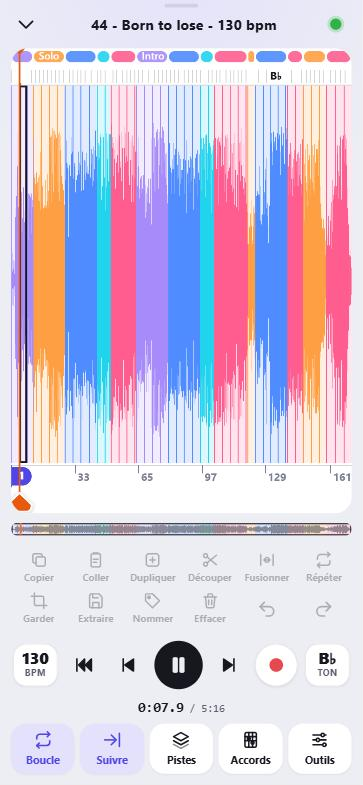
On the waveform, from top to bottom: the section strip (Intro, Verse, Chorus…), the chord row (tapping a chord moves playback there), the blocks (one cycle each, with its letter A, B, C), the ruler with the bar numbers and the orange playhead.
Below: the overview of the whole song, the editing bar, the transport (BPM, ⏮, ⏪, ▶, ⏩, ⏺, TON = key) and the bar with Boucle (Loop), Suivre (Follow), Pistes (Tracks), Accords (Chords), Outils (Tools).
Fixed section colors, the same from one song to the next: Intro purple, Couplet (Verse) blue, Pré-refrain (Pre-chorus) cyan, Refrain (Chorus) pink, Pont (Bridge) yellow, Solo orange, Break gray, Outro green. A section is made of cycles lettered A, B, C…: two identical cycles get the same letter.
Behind the waveform, light lines mark the beats (light gray) and the bars (darker). The waveform stays sharp when zoomed right in, and zoom goes three times further once the song is in memory. Bars are more accurate: a passage the analysis followed at double or half speed goes back to the song's tempo, and breaks, fills and endings are no longer stretched artificially (the analysis is redone little by little in the background).
Stable layout: the blocks no longer move around after the player opens. If a newer layout arrives, a Nouveau découpage · Afficher (New layout · Show) badge offers it, keeping your selection and loop.
Gestures
| Gesture | Effect |
|---|---|
| Tap a block | Selects it (purple frame). Tap again to deselect it. Doesn't start playback. |
| Double-tap a block | Selects its whole section. |
| Tap the section strip | Selects the section. |
| Long press on the section strip | Cycles menu: change the letter ("Tourne A" (Cycle A), "Nouvelle tourne" (New cycle)), Renommer "Refrain"… (Rename "Chorus"…, everywhere in the song). |
| Drag the frame's handles | Extends or shrinks the selection, block by block. |
| Long press on a block, then drag | Moves the block (or the selection): a ghost follows your finger, a marker shows where it will land. |
| Swipe a block up | Removes it from the arrangement ("Supprimer" (Delete) appears). Annuler (Undo) brings it back. |
| Finger held on the selection + tap other blocks | Selection of scattered blocks (not next to each other). |
| Shift+click / Ctrl+click (PC) | Shift+click selects all the blocks between the starting block and the one you click; Ctrl+click (Cmd on a Mac) adds or removes a single block. No block is selected when the player opens. |
| Swipe sideways | Scrolls, with momentum. |
| Pinch with two fingers | Zooms (on PC: Ctrl + mouse wheel). |
| Top tab of a boundary | Moves the boundary between two blocks, snapping to cycle starts and beats. A bubble shows the length of both blocks. |
| Bottom dot of a boundary | Fine adjustment, no snapping, twice as slow as your finger (bubble "Précis · +12 ms" (Precise · +12 ms)). Zoom in for more precision. |
| Tap or drag the bottom ruler | Moves the playhead. Long press on its handle: Coller (Paste) here or Couper ici (Cut here). |
| Tap the overview | Brings the whole song back on screen. |
| Purple "1" marker on the ruler | Drag it to the real start of the song (it snaps to the beats): all the bars are renumbered evenly from there, and a count-in becomes bar 0. The metronome follows. Shared with the band; tapping the marker goes back to bar 1 from the analysis; Annuler works. |
With a keyboard (PC): Space = play/pause, ← → = previous/next block, Ctrl+Z / Ctrl+Shift+Z = undo/redo, Esc = close.
The editing bar
The editing bar is always shown: as long as no block is selected, its tools are dimmed but readable.
| Button | Effect |
|---|---|
| Copier / Coller (Copy / Paste) | Copies the selection; Coller (Paste) inserts it at the playhead, on the nearest block edge. |
| Dupliquer (Duplicate) | Copies right after the selection. |
| Découper (Split) | En 2 (In 2), En 3 (In 3), En 4 (In 4), Chaque mesure (Every bar), Toutes les 2 mesures (Every 2 bars), Toutes les 4 mesures (Every 4 bars), Ici (Here, at the playhead). |
| Fusionner (Merge) | Several sections → a single section; one section → a single block; a single block → with the next one. |
| Répéter (Repeat) | Each tap adds a pass (×2, ×3…). Long press: choose ×1 to ×8 or Autre nombre… (Other number…). |
| Garder (Keep) | Keeps only the selection; the rest leaves the arrangement. |
| Extraire (Extract) | Saves the selection as a new file, without touching the song: Morceau d'origine (Original song) or Avec mon mélange (With my mix) (details). |
| Nommer (Name) | Intro, Couplet (Verse), Pré-refrain (Pre-chorus), Refrain (Chorus), Pont (Bridge), Solo, Break, Outro, or Autre nom… (Other name…): the selection becomes a section, its cycles are re-lettered. |
| Effacer (Erase) | Removes the selection from the arrangement (the file isn't touched). |
| Annuler / Rétablir (Undo / Redo) | Up to 100 steps. |
Shared or personal? Fixes to the layout (boundaries, splits, merges of consecutive blocks, names, letters) are sent to the server and become the layout for the whole band. As soon as you rearrange (erase, keep, move, copy, paste, duplicate), the layout stays on your phone and nothing more is shared until the original order is restored. ×N repeats are never shared.
Tempo and key
- BPM: tap to open the Tempo window (−1, slider, +1, shortcuts 75 %, 90 %, original). Or hold, then drag up or down: the value applies when you let go. From 50 % to 150 %, without changing the pitch. The server prepares the stretched version ("Tempo en service" (Tempo in progress)) while playback continues. Your tempo is remembered per song, on all your devices.
- TON (key): hold, then drag to transpose from −6 to +6 semitones. Tap to open Gamme et accords (Scale and chords): the key, the notes of the scale, the suggested pentatonic for improvising, the song's chords, Transposer (Transpose), Tonalité originale (Original key; correcting it applies to the whole band) and Notation C D E or Do Ré Mi.
- Heard right away: a change of tempo or key can be heard at once, worked out on the phone while the server prepares its version; if the device is too slow, the work goes back to the server automatically. It starts 0.3 s after you let go of the slider (2 s after the + and − buttons), and several changes in a row make a single request. When you go back to the original, the screen says "Retour au tempo d'origine…" (Going back to the original tempo…) then "Tempo d'origine en service" (Original tempo in use) (the same goes for the key and the mix).
- The key is detected correctly 94% of the time on the band's recordings; a key corrected by hand by a member always comes first. On iPhone, the song is decoded by the phone's chip and kept on the device (1 GB at most): it's ready very quickly, going back to the original tempo is instant, and the song from the mini player is picked up with no new download. On a slow connection, the sound starts right away; on Android, decoding is about twice as fast.
Loop, metronome and trainer
- Boucle (Loop): on when the player opens. With a selection, only the selection loops, sample-accurate; with no selection, the whole song. Even a drum loop a few seconds long restarts with no dead time at all.
- Suivre (Follow): the view follows the playhead, page by page.
- Outils (Tools):
- Décompte d'une mesure (One-bar count-in) before each start;
- Métronome (Metronome) locked to the detected beats;
- Entraîneur de tempo (Tempo trainer): first select the passage, then set Départ (Start), Arrivée (Target), Palier (Step: +1, +2, +5) and Passages (Passes: ×1, ×2, ×4), then Démarrer (Start). The loop speeds up at each step until "Objectif atteint" (Goal reached). A badge at the top lets you stop;
- Utiliser l'analyse fine (Use the fine analysis) or Revenir à l'analyse de base (Go back to the basic analysis);
- Réinitialiser… (Reset…): Remettre dans l'ordre d'origine (Restore the original order), or Revenir à l'analyse (Go back to the analysis; also erases the band's shared correction).
Tracks: separating the instruments and mixing
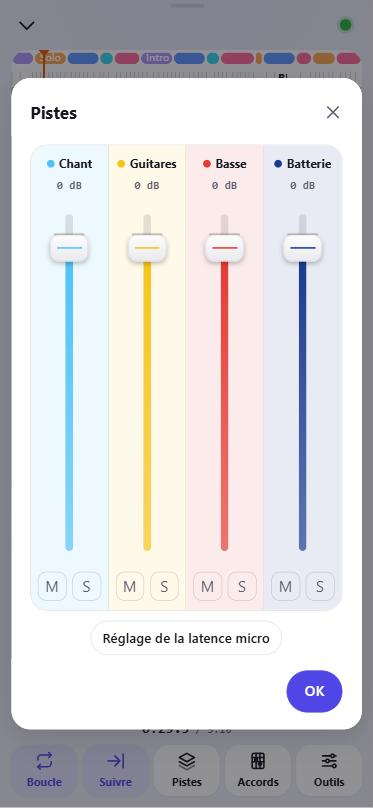
One channel strip per instrument: Chant (Vocals), Guitares (Guitars), Basse (Bass), Batterie (Drums) (plus Autres (Other) in high quality), then your takes. Fader in dB (double-tap = 0 dB), M (mute) and S (solo). Tap OK: the server prepares the mix ("Mélange en service" (Mix in progress)). Settings are remembered per song.
Long press on a take's name: N'écouter que cette prise (Listen to this take only), Renommer… (Rename…), Supprimer (Delete).
Once the instruments are separated, the chords are recalculated and more reliable. Switching from one mix to another happens without a gap: mixes are kept on the phone and prepared as soon as the player opens.
High-quality separation (5 tracks)
An optional, much cleaner separation into five tracks: Chant (Vocals), Guitares (Guitars), Basse (Bass), Batterie (Drums) and Autres (Other). "Autres" holds everything else in the song: the five tracks together give back the song exactly. They replace the four quick tracks, and the mixer settings are kept.
- Advanced player › Pistes (Tracks) › High-quality separation.
- While it works, the mixer shows the progress as a percentage, with the time left: allow 18 to 20 minutes for 4 min 30 of music. You can close the player. An interrupted separation starts again with Resume high-quality separation (N%); a separation planned for the night starts right away with Speed up.
- A badge shows which version is in place: "high quality" or "quick version (4)".
Installing the model admin: the separation model is never shipped with 28JoursBox. The administrator installs it from a file they own (about 700 MB, .onnx), either:
- in the web interface: Me › Settings › Advanced › High-quality stem separation › Install from a file…. The row changes from "model not installed" to "installed ✓", with the number of songs in high quality and the space used;
- on the server PC: État du serveur… (Server status…), "Pistes haute qualité : non installées" (High-quality tracks: not installed) row › Installer… (Install…).
The file is checked: "file present, but not the expected model" is shown if it isn't the right one. Without the model, nothing changes: four tracks, and no extra button. Once the model is installed, songs are also separated in high quality overnight; a separation that isn't finished picks up again the next night.
Chords and guitar diagrams
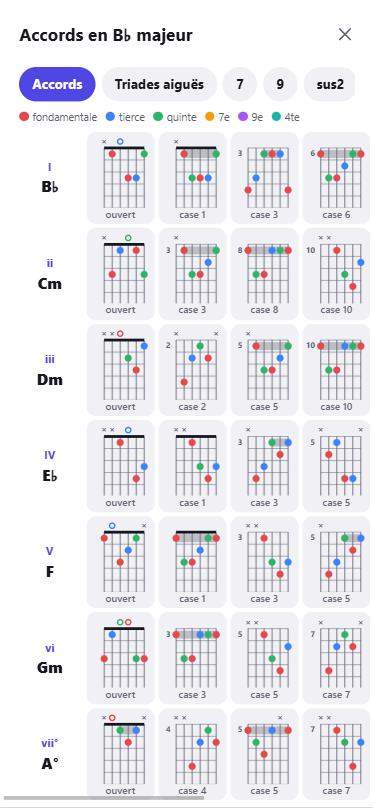
The Manche (Neck) button opens, on the Accords (Chords) tab, the scale's guitar diagrams (I, ii, iii, IV, V, vi, vii°), with several positions on the neck ("ouvert" (open), "case 3" (fret 3)…), and the tabs Triades aiguës (High triads), 7, 9, sus2, sus4. The dots are color-coded: root, third, fifth, 7th, 9th, 4th. Pinch to enlarge.
In the Accords (Chords) window, the chord you hear is framed and follows playback. Chords are recognized with a large vocabulary (sevenths, maj7, m7, dim, sus), including in softly played intros. When they are recalculated in the background, the old ones stay on screen in the meantime.
Gamme (Scale) tab: the song's scale on an upright neck, to scale, up to the 15th fret (the 12th marked in red, "octave"), for guitar, 4- or 5-string bass, as the full Gamme (Scale) or the Penta (pentatonic); the root is in red. For bass, chords are given as arpeggios. If you correct the key, the chords are recalculated. You can also get there by tapping the key box (Gamme et accords (Scale and chords) window).
- The bass being played: during playback, the bass note shows on the neck (circled orange dot). The basse jouée (bass played) button shows or hides it. On guitar, a note that's too low is moved up an octave.
- Realistic fingering: the hand stays in a four-fret position, the low end of the neck is preferred, the root is played on the open low string when possible, and a phrase played high stays in its position. ▲ ▼ arrows for the position: "auto", or a fixed "case 3" (fret 3), "case 5", "case 7", "case 9", "case 12". − and + buttons for the octave ("octave", "octave +1"…, from −1 to +2), at the same place on the neck.
- Notes outside the scale (a note from a borrowed chord, an approach note, a passing note, a blue note) are kept, circled in purple, with what they are written next to them; a doubtful note is gray, with "?". A summary ("hors gamme : …", outside the scale: …) shows under the neck.
- The bass notes are prepared overnight, from the bass track (in high quality when it exists). Without separated tracks, the bass line is estimated from the whole song ("Basse : estimée sur le morceau entier", Bass: estimated from the whole song), which is less reliable.
At the top of the Accords and Gamme windows, − / + set the tempo in 5% steps, and origine (original) goes back to it; the display shows "N BPM · N %".
Recording a take on top
- Go back to the original tempo and key (required for a take).
- The first time on this phone, measure the mic delay: no headphones, volume up, somewhere quiet, tap Mesurer (Measure, 8 clicks). This setting is also in Pistes (Tracks) › Réglage de la latence micro (Mic latency setting).
- Plug in headphones (wired if possible): the mic must not hear the song.
- In Pistes, choose what you want to hear (for example everything except your instrument). Optional: select a passage with Boucle (Loop) to play it on a loop; as in a sequencer, only the last complete pass is kept.
- Tap ⏺: one bar of count-in, then playback and recording at the same time (red frame, duration, level meter). Tap ⏺ again or pause to stop.
- The take is lined up exactly with the song and becomes a file "Titre - Prise N.m4a" (Title - Take N) next to the song, shared with the whole band, and a track in the mixer.
Basic analysis and fine analysis
- Basic analysis (red badge): a few seconds after the upload. Tempo, bars, cycles and sections named "Partie A", "Partie B" (Section A, Section B)…
- Fine analysis (green badge): sections recognized and named (riffs, verses, solos…), more accurate. Done every night for m4a songs, or on request: tap the red badge › Utiliser l'analyse fine (Use the fine analysis; a few minutes, "Analyse fine N %" (Fine analysis N %); you can close the player), then Appliquer (Apply).
- It automatically replaces the basic analysis. Revenir à l'analyse de base (Go back to the basic analysis) is a choice shared with the band, which the fine analysis will no longer replace.
Saving an edit, extracting a passage
- After rearranging (moving, erasing, copying, repeating), tap Enregistrer (Save) at the top: Enregistrer le montage (Save the edit) creates "Titre (montage)" (Title (edit)) in the same folder, same format and same quality as the original, built by the server with no loss. Or Remplacer l'original (Replace the original): the original stays in the version history.
- Extraire (Extract) saves only the selection (repeats included) to a new file. The Extraire la sélection (Extract the selection) window offers Morceau d'origine (Original song: same format, same quality) or Avec mon mélange (With my mix): exactly what you hear (muted or solo tracks, levels, takes, tempo, key), as m4a. Avec mon mélange stays grayed out until the mixer, the tempo or the key has been changed. The song itself isn't modified.
In the car and with the screen off
The player goes through the phone's built-in player: lock screen, control center and CarPlay all work, and "previous / next track" jumps from block to block. Loops and a changed tempo keep going with the screen off. After an interruption (GPS, call), playback resumes by itself. The count-in, metronome, takes and trainer are less reliable in CarPlay. The latest mixes and tempos can be replayed offline.
Recording and editing audio
Making a new recording
- In the destination folder: + › Record audio (or, with the app installed on Android, long-press the icon › Record audio). The recorder shows the destination folder's real name ("Fichiers", Files, for the top folder).
- Allow the microphone if the phone asks. The sound is captured raw: no noise reduction, no automatic gain.
- Tap the big red button. A big timer with a level meter runs and the waveform draws itself live; "SAT" lights up if the signal clips (move the mic further away).
- Tap the red button again to stop. The app preselects the part you played (without the talking at the start and end) and normalizes the level: tap Garder (Keep) to keep only the music.
- Listen, touch it up if needed (the tools are offered after the take, see below), then tap Sauver (Save), at the top right, away from the red button. This button is always there, even for a take too long to be edited.
- The Sauver la prise (Save the take) window: enter a Titre (Title) (the file will be called "YYYYMMDD Title.m4a"), then:
- Envoyer maintenant (Send now): sends it to the server and converts it to m4a;
- Envoyer plus tard (Send later): perfect at a rehearsal with no network. The take stays on the phone, and a banner "1 take to send · 3 min 12" shows up at the top of the file list; tap its Send button later (details).
No take is ever lost: while recording, the sound is written to the phone every 10 seconds. If the app is closed, the iPhone locked or the page reloaded, the take is pieced back together when you return (Take recovered). After a short interruption (a call), recording resumes by itself, and the app never updates while the recorder is open. There's no length limit. A take leaves the phone lossless (FLAC) and is only erased from it once it has been checked on the server.
The red button asks for confirmation ("Nouvelle prise ?", New take?) if the previous take hasn't been saved. Closing the recorder never deletes a take: if it hasn't been saved, the question Que faire de cette prise ? (What to do with this take?) ("Prise de 3 min 12, pas encore envoyée.", 3 min 12 take, not sent yet) offers Envoyer (Send), Garder sur le téléphone (Keep on the phone) and Supprimer (Delete). Closing the question without choosing keeps the take on the phone. Supprimer puts it in the phone's trash for 30 days, with Annuler (Undo) in the message that follows. You need the https address (invitation link) and Safari (iPhone) or Chrome (Android). Microphone blocked on iPhone: "aA" in the address bar › Website Settings › Microphone › Allow.
Takes on this phone and recovered takes
- Take recovered: an interrupted take (app closed or reloaded, phone switched off) is found again when you reopen the app. The "Take recovered (length)" window offers Keep without sending or Send; it's never thrown away without your say-so.
- Takes on this phone: while takes are waiting on the phone, a one-line banner shows at the top of the file list, "1 take to send · 3 min 12", with the Send button; a second line only appears if an upload failed or storage is full. Tapping the text opens Takes on this phone, with two actions per take: Send and Delete. Delete doesn't ask for confirmation: the take goes to the phone's trash, with Cancel. The window closes by itself when nothing is left.
- Deleted takes: at the top of the Trash (Me › Trash), kept for 30 days, with Restore and Restaurer et envoyer (Restore and send) (details).
- Checked uploads: takes upload by themselves, in pieces, and resume after a dropout. The phone's copy is only removed once the server has checked it. The lossless original (FLAC) is kept on the server and can be downloaded from the version history.
- "Prises récupérées" (Recovered takes) folder: if the destination folder was deleted in the meantime, the take is saved there instead of being lost.
On iPhone, Safari may erase the data of a site you rarely use: add 28JoursBox to the Home Screen and send your takes without waiting too long.
Recording to a click (metronome)
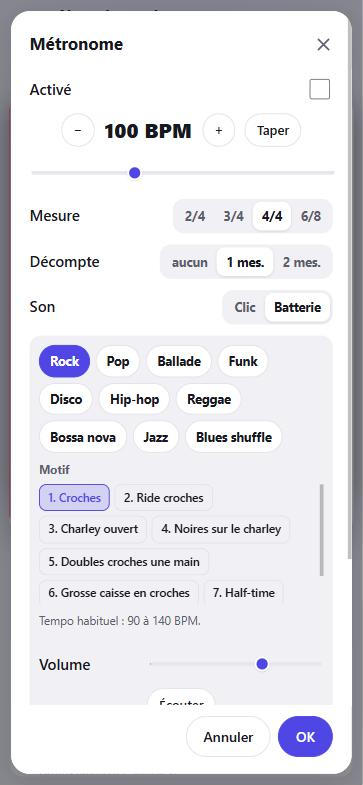
Activé (On); the tempo with − / +, the slider (40 to 220) or Taper (Tap) in time; Mesure (Time signature) 2/4, 3/4, 4/4, 6/8; Décompte (Count-in) none, 1 or 2 bars; Clic pendant la prise (Click during the take) (with headphones, the click is not recorded).
Clic silencieux (Silent click): for the drummer who has their own click. Nothing sounds, but the take is then aligned to a grid at that tempo.
The take starts exactly on the first beat after the count-in. When you stop, the app offers to align it to the grid.
Recording over real drums
In the recorder's Métronome (Metronome) window, the Son (Sound) is a real drum kit recorded in a studio by default (the Clic (Click) is still an option): a kit suited to each style, several dynamics and alternating hits for a human feel. Each style offers ten patterns, so a hundred reference grooves (Motown, one drop, rockers and steppers, real bossa clave, jazz ride, Texas shuffle, train beat…), each at its usual tempo.
- Open the recorder (+ › Record audio), tap the metronome button and turn it on: drums are the suggested sound.
- Choose the style (Rock, Pop, Ballade, Funk, Disco, Hip-hop, Reggae, Bossa nova, Jazz with the Jazz aux balais (Jazz with brushes) option, Blues shuffle; Valse (Waltz) in 3/4, 6/8), then the pattern. Tapping a style or a pattern plays it right away, on a loop; changing the tempo or pattern while listening restarts it. Set the volume.
- Plug in headphones: the drums are then not recorded, only your instrument is.
- Tap the red button: a stick count-in, then the drums play while you record. Just like with the click, the take is aligned to the grid.
A style's kit downloads the first time (5 to 8 MB), then stays on the phone. Sound credits, shown in the app: DRSKit (DrumGizmo.org, CC BY 4.0), Virtuosity Drums (Versilian Studios), Big Rusty Drums (Karoryfer Samples).
The take split into cycles
After the take, the server finds the cycles, just like in the advanced player, and shows them as numbered blocks above the waveform ("Recherche des tournes…" (Finding cycles…) while it works; tap the message to try again if it fails).
- Tapping a block plays it on a loop; tapping other blocks extends the selection.
- Adjusting a boundary: the top handle snaps to bars (a little "click" at each bar, with a bubble "4 mes. │ 4 mes." (4 bars │ 4 bars)), or the round bottom handle for fine-tuning (the boundary moves half as much as your finger). When zoomed out, handles that are too close together are hidden: zoom in.
- Boucler (Loop): loops the selection, or the whole take if nothing is selected, with no gap; after Garder (Keep), the loop keeps going over what you kept.
Perfect for a quick demo: find the good part, loop it, keep only what you need.
The editing tools
Select: press a little longer on the waveform, then drag (with a mouse: just drag); pull the handles to adjust. Zoom: pinch; double-tap to show everything.
| Tool | What it does |
|---|---|
| Effacer (Erase) | Removes the selection; what follows closes up the gap. |
| Garder (Keep) | Keeps only the selection. |
| Silence | Replaces the selection with silence, without changing the length. |
| Fondu entrée / Fondu sortie (Fade in / Fade out) | Raises or lowers the volume over the selection. |
| Normaliser (Normalize) | Brings the selection, or the whole take with no selection, up to the maximum level (−0.5 dB). |
| Caler (Align) | Aligns the take to a grid of bars (below). |
Cuts are hard: add a short fade to avoid a click. The arrows at the top undo and redo (up to 200 steps; Ctrl+Z on a PC).
Aligning to the grid
So that a recording dropped at the start of a music program, at the same tempo, lands right on the grid.
- After a take with the metronome, the Caler la prise sur les mesures ? (Align the take to the bars?) window opens by itself; otherwise, tap Caler (Align). It sums up in one sentence what will be done: tempo, time signature, number of bars.
- Tap Écouter le début (Listen to the start) to check the beginning.
- Oui, caler (Yes, align) trims the start and end on bar lines (the "1" is found from the kick and snare, and silence is added if needed); Non, garder telle quelle (No, keep it as is) leaves the take untouched.
- The fine settings are folded away: tempo (left empty, it is measured), time signature, shifting the start by one beat or one bar.
The ruler then switches to numbered bars, and the grid goes along with the file for its analysis. A take with no rhythm, one that's too short (less than 4 s of music) or one played without a click with a drifting tempo is refused, with an explanation.
Editing an existing file
- ⋯ menu of an audio file › More… › Edit the audio (or swipe the row › Edit). Formats: wav, m4a, mp3, aif, aiff, flac.
- Trim, add your fades, normalize (same tools as above; plus Écouter la sélection (Play the selection) and Boucle sur la sélection (Loop the selection)).
- Save. For an m4a or a WAV, Sauver (Save) creates a new version of the same file (the old one stays in the history); Sauver comme nouveau fichier (Save as a new file) creates "Name (edited)". An mp3, aif or flac gives you a copy in .m4a.
Only the list of changes goes to the server, which rebuilds the file from the original, with no loss of quality. If someone changed or locked the file in the meantime, the app offers to save it as a new file.
Converting to WAV
⋯ menu › More… › Convert to WAV…: Bit depth 16, 24 (default) or 32-bit float, Sample rate 44.1, 48 (default), 88.2 or 96 kHz, then Convert. A new .wav file is created in the same folder, from the original; the original does not change.
To Studio One and Cubase
Turns a song into a ready-to-open Studio One project, always multitrack in high quality, with a grid locked to the playing, even for a rehearsal played without a click.
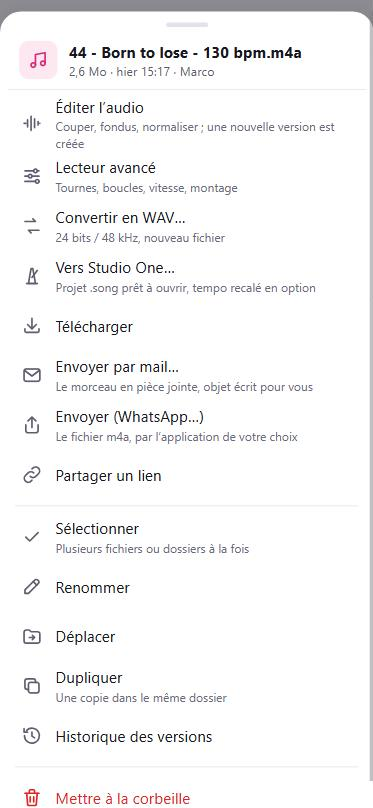
The window asks for the Project folder (Next to the song or Change…, remembered) and the Project tempo (see below). Tap Create.
- One track per instrument, with fixed colors: Vocals (sky blue), Guitars (yellow), Bass (red), Drums (blue), Other (purple), then the Mix (brown, muted) and the recorded takes below. All in 24-bit / 48 kHz WAV.
- "Clic Pad" track (green, at the very bottom of the project): a drum click at the project's tempo, played with the sounds of the bundled rock kit. In 4/4, an accented kick on 1 and 3, snare on 2 and 4; in 3/4, kick on 1, snare on 2 and 3. The track is made of three blocks: the two count-in bars, then the whole song in one piece, locked exactly to the project's grid, tempo changes included.
- Two-bar count-in: the click starts two bars before the song; all the tracks and the loop are shifted by the same amount.
- Project tempo, remembered separately for Studio One and for Cubase:
- Fixed tempo, the default: "the DAW fits the playing to a steady grid". The project is at the song's average tempo, rounded to a whole BPM, and the music program stretches the audio itself so that every drum beat lands on the grid.
- Variable tempo (the tempo follows the playing): "the grid follows the playing, the audio is left untouched". If you then flatten the tempo curve in the music program, it stretches the audio by itself.
- Tempo steps and ramps: an intended tempo change (a faster bridge, a speed-up) becomes tempo steps or a ramp in the project; the tempo lane is shown in Studio One and the tempo track turned on in Cubase. A drummer's small natural variations stay on a single tempo.
- Final message: with a fixed tempo, it gives the project tempo, the tempo changes followed and, in plain words, the passages that are still stretched too much, for example "Warning: bar 111 stretched by 19% (beyond a drummer’s natural variation)". With a variable tempo, nothing is stretched, so there's no warning: the message gives the playing's tempo range.
- If the separation is missing, it's done on the server without blocking the app: a badge follows the progress ("séparation haute qualité N % (≈ N min)", then "création du projet…", creating the project), and tracking picks up again after a page reload. Without the high-quality model, the quick separation is used (a message says so).
Result: a "Song" folder (never overwritten: "Song 2"… if the name already exists) containing Song.song and a Media folder. The project file only appears once all the audio files are ready. Studio One opens zoomed out on the whole song. Bars are more accurate than before (breaks, fills and endings are no longer stretched), hence a steady tempo in the project.
On a band member's PC, the folder shows up in 28JoursBox: just open Song.song. The project then locks automatically for the other members. The working folders of Studio One and Cubase (Cache, Images, Auto Saves, .peak and .bak files…) aren't synced. The project keeps the song's time signature: a song in 3/4 has its bars in 3/4, count-in included.
To Cubase
Same idea for Cubase: the song's ⋯ menu › More… › To Cubase… creates a project ready to open in Cubase 14 or later: a "Song Cubase" folder with the .cpr file and an Audio folder, the same colored tracks, the grid locked to the playing and the sample rate (48 kHz) set. When opened in Cubase from the 28JoursBox folder, the project also locks automatically for the other members. As in Studio One, the song's time signature is kept (count-in included), the "Clic Pad" track is at the bottom, and the loop runs from the start of the blocks to the end of the click.
Step by step: everyday uses
From rehearsal to a rearranged song
The whole journey, with no computer in the rehearsal room.
- At rehearsal: + › Record audio, red button, play, red button. Tap Garder (Keep) to keep only the part you played, trim and add fades if needed (details). To play over a groove instead of a click: Clic (Click) › Son (Sound) › Batterie (Drums) (details). The take arrives already split into cycles: tap a block to loop it (details).
- No network? Save the take with Envoyer plus tard (Send later). Once you're back on the network, tap Send in the banner at the top of the file list. The take leaves lossless (FLAC) and picks up again by itself after a dropout; it arrives as m4a in the chosen folder.
- Let the server do the work: a few seconds after it arrives, the song has its tempo, bars, sections, A/B/C cycles and chords. Overnight, it is separated into vocals, guitars, bass and drums (plus "other" with the high-quality separation), then the fine analysis names the sections (details).
- Open it in the advanced player and rework the arrangement: long-press then drag to move a block or a section, Dupliquer (Duplicate), Effacer (Erase), Garder, Nommer (Name) (Intro, Verse, Chorus…), Répéter (Repeat) a loop ×N, Extraire (Extract) a selection. Annuler (Undo) takes back anything (details).
- Keep the result: Enregistrer (Save) at the top creates "Title (edit)" for the whole band (details).
- Add your part: headphones plugged in, the ⏺ button in the advanced player; the take is aligned with the music and shared with the band (details).
- Everyone's own version, then the music program: each member can suggest their own structure by saving their edit; the others listen to it in the band's folder. Once it's decided, ⋯ menu › More… › To Studio One… (or To Cubase…) creates the project with the separated tracks and the click, or take the WAV (Convert to WAV…) for any music program (details).
Fixing the split (boundaries, names, letters) benefits the whole band; rearranging (moving, erasing, copying) stays personal until you save the edit.
Learning a song before rehearsal
- Open the song in the Advanced player.
- Find the structure on the sections strip and the chords on the row above it.
- Tap TON (Key) for the scale and the pentatonic, Accords (Chords) for the chord diagrams.
- Double-tap a block to select its section, then ▶: it plays on a loop.
Working on a hard passage, slowly
- Select the passage (tap a block, pull the handles).
- Hold BPM and slide down, or tap BPM › 75% › OK.
- Optional: Outils (Tools) › Décompte d'une mesure (One-bar count-in) and Métronome (Metronome).
- Once you've got it: Outils › Entraîneur de tempo (Tempo trainer), from 80% up to the original tempo, in steps of +2.
Muting your instrument and playing along
- Pistes (Tracks); if needed, Séparer (Separate) and wait.
- M on your instrument (for example Basse, the bass), or lower its slider.
- OK, wait for "Mélange en service" (Mix in use), and play along with the band.
Recording your part over the song
- Original tempo and key, mic delay measured once, headphones plugged in.
- Optional: select a passage with Boucle (Loop); only the last complete pass is kept.
- ⏺, play, ⏺ to stop. The take is in Pistes (Tracks) and in the song's folder, for the whole band.
The drummer records to a click, then into the music program
- + › Record audio › Clic (Click): Activé (On), tempo, time signature, 1-bar count-in. With your own click in your headphones: Clic silencieux (Silent click). OK.
- Red button: count-in 1, 2, 3, 4, then the take starts on the 1. Red button to stop.
- Caler la prise sur les mesures ? (Align the take to the bars?): Écouter le début (Listen to the start), then Oui, caler (Yes, align).
- Save and send. On the PC, drag the file to the very start of a project at the same tempo: the hits land on the grid. Or use To Studio One….
Cleaning up a rehearsal recording
- ⋯ menu › More… › Edit the audio.
- Select the chatter and Effacer (Erase), or select the song you played and Garder (Keep).
- A short Fondu entrée (Fade in) and Fondu sortie (Fade out) at the ends, then Normaliser (Normalize) with nothing selected.
- Save: a new version, and the original stays in the history.
Trying a new arrangement
- In the advanced player: long-press a block and drag to move it, drag up to erase it, Copier (Copy) / Coller (Paste), Dupliquer (Duplicate), Répéter (Repeat) ×2.
- Listen on a loop, Annuler (Undo) if needed.
- Enregistrer (Save) at the top: a new file "Title (edit)" for the band.
Fixing the split for the whole band
- If the badge is red: badge › Utiliser l'analyse fine (Use the fine analysis) › Appliquer (Apply).
- Adjust the boundaries (top handle snaps to bars, round bottom handle for fine-tuning), Découper (Split) / Fusionner (Merge), Nommer (Name) the sections, long-press the sections strip for the letters. If the rehearsal starts with a count-in, drag the purple "1" handle to the first real beat.
- Fix the key if needed: TON (Key) › Tonalité originale (Original key).
- Don't rearrange at the same time (moving, copying, erasing): the split would become personal. To undo everything: Outils (Tools) › Réinitialiser… (Reset…) › Revenir à l'analyse (Back to the analysis).
Going from a rehearsal to the studio
- The song's ⋯ menu › More… › To Studio One… (or To Cubase…).
- Keep Next to the song as the Project folder and Fixed tempo (or Variable tempo (the tempo follows the playing) to leave the audio untouched), then Create. Even a rehearsal played without a click lands on the grid.
- Once the progress badge is done, open Song.song (or the .cpr file) in the PC's 28JoursBox folder. The click starts two bars before the song.
Sharing photos and videos from a gig
- In the band's folder, + › New folder, for example "Gig 2026-10-12".
- Open it, then + › Upload new photos and choose photos and videos from the gallery (the app reminds you of the date of your last upload). During the gig, Take a photo or a video sends what you shoot straight away.
- The upload picks up again by itself after a network dropout. The other members see the thumbnails right away and open photos and videos full screen; they also arrive in the 28JoursBox folder on their PC.
- For the venue or the fans: the folder's ⋯ menu › Share a link (password and end date optional). To grab everything at once: Download (zip), up to 500 MB.
iPhone HEIC photos display in Safari; in other browsers, the preview may not be available (the file can still be downloaded). For large video files, make sure there's room on the server's disk (see the system requirements).
Trash and version history
The trash
- Everything deleted (from a PC, a phone or the web) stays in the server's trash for 30 days. A file moved to the trash from the app shows a message with Undo.
- Opening the trash: Me › Trash. Each item shows who deleted it, when, and from where.
- Restore: the item goes back to where it was (or to the root if its folder no longer exists; "(restored)" if the name is taken). Anyone can restore.
- admin Delete for good an item, or Empty the trash (two confirmations).
- Prises supprimées sur ce téléphone (Takes deleted on this phone): at the top of the trash, a section for takes that were never sent and that you deleted from this phone (from the recorder or Takes on this phone), kept for 30 days, drawn like the other rows. Each take has Restore and Restaurer et envoyer (Restore and send) (on a phone, only the icons show). To erase one for good, swipe it to the left: "Erase “…” from the phone?" › Effacer définitivement (Erase for good), then the message "Prise effacée du téléphone" (Take erased from the phone).
Version history
⋯ menu of a file › More… › Version history: each version with its date, size, the member and the PC. Buttons Listen, Preview, Download, Restore (the chosen version becomes the current one again; the current one stays in the history). Old versions are kept for 30 days; the current version, always.
Settings (Me tab)
Settings are in the Me tab, under your account, the Trash and Shared links (details). A member who isn't an administrator sees a simple page: Language · Langue, Invite someone, Install the app and Disk space. Administrators get four collapsible sections, opened or closed with a tap (remembered on the device); on the server PC, the Server section opens by itself. On a device where administration rights aren't unlocked, an administrator nickname sees the Administration rights card under the Group administration heading. Each card has a single main button; on a PC, the page keeps a limited width. Sign out is at the very bottom of the page.
- Account and device: Language, Install the app, My devices.
- Group: Space shown (if the family space is on), Invite someone, Family space, Group members.
- Server: Name, logo and disk space, Server status, Sending mail, Google Calendar, Fast access through your router.
- Advanced: Administration rights, High-quality stem separation, Log.
| Card | What's in it |
|---|---|
| Language · Langue | Français or English, set separately on each device. Everything is translated except the advanced player (apart from the Pistes (Tracks) mixer), the recorder and audio editor (apart from the Transcribe to text checkbox), the question asked when you close the recorder, the deleted-takes section of the Trash, the calendar reminder posted in the chat, and the PC app, which stay in French. |
| Install the app | Adds it to the home screen (if you haven't already). |
| My devices admin | The PCs signed in with the app, then the browsers and phones signed in to your account. Disconnect a device that was lost, isn't used any more or that you don't recognize: it will have to sign in again. |
| Space shown admin | Group and Family space buttons (details). |
| Invite someone | Show the link and password: this is where you invite people from (details). The group password can only be changed from the app on the server PC (details). |
| Family space admin | Turning it on, password, invitation link and members of the family space, each with the Rename pencil (details). |
| Group members admin | Administrator and Disabled checkboxes (a disabled member can no longer sign in, their PCs are disconnected, their files stay), the Rename pencil to change a member's display name (1 to 40 characters; a name already used in the space is refused; their sign-in nickname doesn't change and they aren't signed out), Delete this account icon (you'll have to invite them again). After a deletion, the app offers to change the group password too. |
| Name, logo and disk space | (Disk space for a member.) The server's name and version ("up to date" for administrators, or "Server update: version X available"), the space used by the band's files and the space still free. admin Server name + Rename, and the group logo (JPEG, PNG or BMP image), shown at the top of the Files tab. |
| Server status admin | A badge, "All is well" or "Attention: …" (disk almost full, backup overdue, errors today), detailed disk space, backups, progress of the overnight preparation, installed tools (including Document preview (LibreOffice)) and the latest alerts. |
| Sending mail admin | Sending account (Gmail, Outlook / Hotmail, Orange, Free, Other), Send a test, Save. For Gmail: turn on 2-Step Verification and create an "app password". |
| Google Calendar admin | Links the Calendar tab to the Google calendar of the app's Gmail account, both ways (details). |
| Fast access through your router admin | Faster access from outside, without Tailscale's relays: name chosen on duckdns.org, account code, port, status and certificate (details). |
| Administration rights admin | On the server PC: set or change the administrator password. Anywhere else: Unlock (12 hours) or Lock again on this device (details). |
| High-quality stem separation admin | Install the five-track separation model (details). |
| Log admin | What went wrong on the server and the phones; Copy to pass it on. |
The light theme is used on every device, even when the phone is in dark mode.
Managing the server
This chapter is for the person who looks after the server PC.
Managing from a phone or another PC
The group password (the one in the invitation link) does not give administration rights, except on the server PC. To manage things from anywhere else (trash, members, family space, group name and logo, fast access, sending mail…), you need an administrator password. It's also needed to sign in with an administrator nickname: for that nickname, the group password isn't enough.
- Once, on the server PC: Me › Settings › Advanced › Administration rights › Set the password (at least 8 characters, asked twice; Show password to see what you're typing).
- On the phone or the other PC: Me › Settings › Administration rights › Unlock, enter that password. The app reloads with administration rights.
- The unlock lasts 12 hours. Lock again on this device ends it sooner (do this on a borrowed or shared device). Away from the server PC, Change the password also asks for the current password.
A wrong password shows "Wrong administrator password"; after several mistakes, attempts are blocked for longer and longer (security).
The Server status window
On the server PC, the server is managed from a single window: click the icon next to the clock › État du serveur… (Server status…) (or the panel's ⚙ gear, or Préférences (Preferences) › Général (General)). It also exists on a PC that is only a server.
| Row | What you do there |
|---|---|
| Serveur (Server) | The service's status; Redémarrer (Restart) (one minute without access for the members; Windows asks for permission). |
| Accès extérieur (Outside access) | Tailscale's status; Régler… (Set up…) (details). |
| Sauvegarde, Disque (Backup, Disk) | The last database backup and the free space. |
| Version | Rechercher (Check), or Mettre à jour… (Update…) when a new version is ready (details). |
| Pistes haute qualité (High-quality tracks) | Installer… (Install…) the model (details). |
| Invitation | The link to send and the Mot de passe du groupe (Group password), each with Copier (Copy); Changer le mot de passe du groupe… (Change the group password…). |
At the bottom: Ouvrir le dossier des données (Open the data folder), Détails techniques (adresse, ports, empreinte) (Technical details (address, ports, fingerprint)), Ouvrir le tableau de bord (Open the dashboard: the website's Me tab, with the Server section of Settings open) and Ouvrir les journaux (Open the logs). The server PC's icon takes the color of this health (details); in the website's Settings, the Server status card has the same badge ("All is well" or "Attention: …").
Changing the group password
Do this if the invitation link has gotten out of the group, or after a member leaves (after a deletion, the app itself offers "Also change the group password?"). On the server PC: État du serveur… (Server status…) › Invitation card › Changer le mot de passe du groupe… (Change the group password…). All devices are signed out and all locks are released. Then send the new link to each member: on a PC, they just click Entrer le nouveau mot de passe (Enter the new password) in the panel and paste the link; on a phone, they just open the new link.
Security
- Administrator nickname: signing in with that nickname asks for the administrator password (details).
- Devices: Me › Settings › My devices lists the PCs, browsers and phones signed in to your account; Disconnect closes the session of a lost or unknown device.
- Progressive blocking: after several wrong passwords (signing in, invitation link, public links, administrator password), attempts are blocked for longer and longer.
- Public links: an Expiry of 3 months is suggested when you create one (details).
- The group password never travels in plain text over the local network; updates are signed, with no way back to an older version; the server's data is protected by the installer.
What the server does on its own
- All the time: heavy processing is capped so the server stays reachable (analysis, chords and alignment on 3 cores max, instrument separation on 6, only one song or one transcription at a time). A song open in the player goes first, and while a member's high-quality separation is running, newly arrived songs are still prepared (analysis, chords, bass).
- At night (1 a.m. – 7 a.m.): for each m4a song, newest to oldest, one at a time: analysis, chords, instrument separation, detailed analysis. A high-quality separation that isn't finished picks up again the next night. Then the previews of Office documents (if LibreOffice is installed) and the conversion to MP4 of MKV, AVI or WMV movies (5 per night). WAV and MP3 files are analyzed on demand. Track progress in Me › Settings › Server status.
- Every hour: clears out the trash and versions older than 30 days.
- Every day: backup copy of the database (7 kept), update of the YouTube import tool, cleanup of mixes nobody has played in 30 days, check for a new server version (details).
- Every week (between 7 and 10 a.m.): full check of file integrity.
Backing up
The server backs up its database every day, but not your files to another drive. Regularly copy the data folder (État du serveur… (Server status…) › Ouvrir le dossier des données (Open the data folder)), at least backups and blobs, to an external drive or a NAS. For example, in a Command Prompt:
robocopy D:\28JoursBox-Serveur E:\Sauvegarde /MIR /XD tmp uploads
The server.json file
Advanced settings in C:\ProgramData\28JoursBox\server.json (edit it as administrator, then État du serveur… (Server status…) › Redémarrer (Restart)):
| Setting | What it does (default value) |
|---|---|
| VersionRetentionDays / TrashRetentionDays | How long versions and the trash are kept (30 days). |
| QuotaBytes | The group's storage limit (0 = unlimited). |
| PrecomputeFromHour / PrecomputeToHour | Hours of the overnight preparation (1 and 7). |
| ImportMaxMinutes / ImportTimeoutMinutes | Maximum length of an imported video (120) and of an import (30). |
| HttpPort / HttpsPort / PublicUrl | Ports (8080, 8443) and public address. |
| LibreOfficePath | Path to soffice.exe if LibreOffice isn't in its usual location. |
Useful commands
In a Command Prompt run as administrator, in C:\Program Files\28JoursBox:
28JoursBox.exe move-server-data --to E:\28JoursBox-Serveur: move the data to a bigger drive. The service is stopped, everything is copied and checked, then it restarts. The old folder is only renamed (".ancien"): delete it once you've checked the server.28JoursBox.exe import-folder --from D:\AncienDossier: bring a folder from the server's drive into the group (to switch from another sync software without re-uploading everything from a PC). Folder structure and dates are kept;--moveavoids copying when it's on the same drive. If it's interrupted, run it again and it picks up where it left off.28JoursBox.exe fsck: check the integrity of the storage ("Intégrité OK.").
Troubleshooting
| Situation | What to do |
|---|---|
| "The server is not responding" / "Offline" icon / "Server unreachable" | Check that the server PC is on, not asleep, and that its network is set to the Private profile. On 4G, check outside access (server PC: État du serveur… (Server status…), Accès extérieur (Outside access) row). PCs keep retrying on their own. |
| "The group password has changed" | Ask for the new link. PC: panel › Entrer le nouveau mot de passe (Enter the new password). Phone: open the new link. |
| "Too many attempts" | Wait before trying again: after several wrong passwords, the wait gets longer each time. |
| A PC was reinstalled | Run the setup wizard again with the link and choose the same folder: identical files aren't sent again, nothing is deleted. Then revoke the old PC in Me › Settings › My devices. |
| Folders are missing on a PC | Préférences (Preferences) › Dossiers (Folders) › Dossiers à garder sur ce PC (Folders to keep on this PC): check them, then Appliquer (Apply). |
| The File Explorer check marks are wrong | Préférences (Preferences) › Général (General) › Dépannage (Troubleshooting) › Réparer les coches de l'Explorateur (Repair the File Explorer check marks). |
| Sync is slow when the music software is open | That's on purpose (sync is slowed down). You can adjust it in Préférences › Vitesse (Speed). |
| A "(copie en conflit de …)" (conflicted copy of …) file showed up | Two people edited the same file. Compare them, keep the right version, delete the other one (panel › Copies en double (Duplicate copies)). |
| "Preview unavailable: LibreOffice is not installed on the server." | Install LibreOffice on the server PC. |
| "… FFmpeg is not installed on the server" | The server was installed with the client installer: install 28JoursBox-Serveur-Setup.msi on the server PC. |
| The mic is blocked | iPhone: "aA" › Website Settings › Microphone › Allow. Android: padlock › Permissions › Microphone. The app added to the home screen remembers it. |
| "The sound could not start" | Tap Play again (the phone requires a tap). |
| Takes are stuck "to send" | Tap Send in the banner at the top of the file list, once the network is back, or tap its text to open Takes on this phone. |
| I closed the recorder without choosing | The take is kept on the phone: it's waiting in Takes on this phone. A take deleted by mistake can be restored from the top of the Trash for 30 days. |
| The app closed during a take | Reopen it: the take is pieced back together ("Take recovered"). Choose Send or Keep without sending. |
| "Server storage quota reached" | The administrator raises QuotaBytes or frees up space (trash). |
| You need to report a problem | Administrator: Me › Settings › Log › Copy, then ask your question on the forum. PC logs: Préférences › Général (General) › Dépannage (Troubleshooting) › Ouvrir les journaux (Open the logs). |
| Direct access won't turn on | Check the port forwarding on your internet router (to the server PC's fixed address, port 8443), the DuckDNS name and token, and turn off any VPN on the server PC; then Check now. In the meantime, everything goes through Tailscale. |
Got a question that isn't covered here? Ask it on the forum.